 Free appsCuepact Teleprompter
Cuepact Teleprompter scrolls your text on iPhone or iPad. Set the scrolling speed yourself for a presentation, video recording, or speech.
Teleprompter Cuepact for Mac
cuepact.com
Settings
Mouse and keyboard
Pairing
Put the mouse or keyboard in pairing mode. For a keyboard on iPhone or iPad, or a mouse or trackpad on iPad: open Settings → Bluetooth and select the device. For a mouse on iPhone: open Settings → Accessibility → Touch → AssistiveTouch → Devices → Bluetooth Devices. Select the mouse and turn on AssistiveTouch. Return to Teleprompter. Start opens reading mode with the text paused; press Play to start scrolling.
Mouse
Left-click the reading text to play or pause. Use the scroll wheel or drag the reading text with the left mouse button to move it manually and pause autoscroll. After moving it manually, click the text again to resume reading. Drag the speed slider to slow down or speed up autoscroll. The scroll wheel moves the text; it does not change the speed. The play/pause button starts or pauses scrolling. At the end, Restart returns to the beginning and pauses. The right mouse button and additional mouse buttons have no teleprompter function.
Keyboard
These commands work only in reading mode: Space: play or pause. ↑: slower. ↓: faster. ←: previous paragraph or list item. →: next paragraph or list item. Home: return to the beginning and pause. M: mirror horizontally. Shift + M: mirror vertically. Esc: pause and return to your text. You can type normally in the text field. System keys and standard editing commands remain available.
Text size
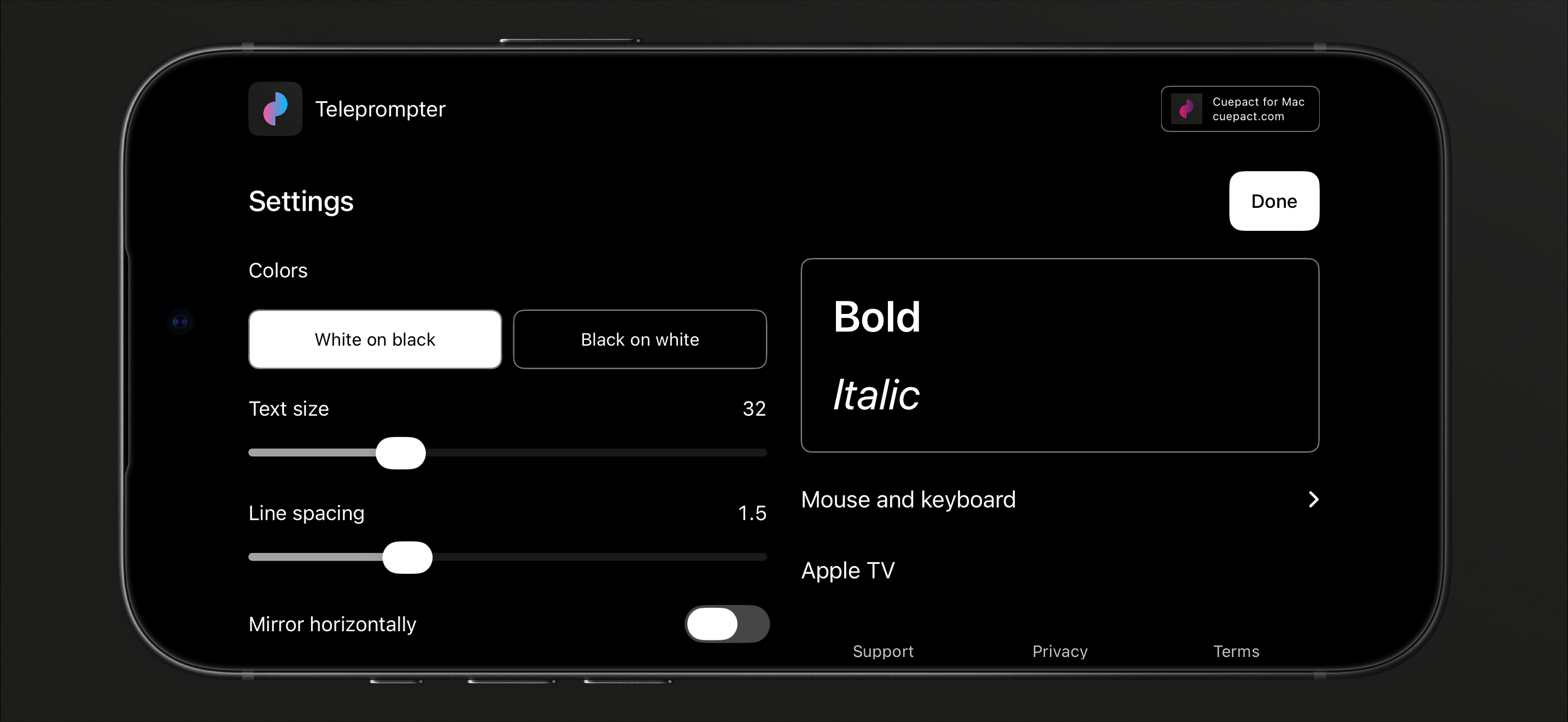
Adjust text size and line spacing. Choose white text on black or black text on white.
Speed
Change the speed while you read. Tap the text to pause or resume.
Mirror your text.
Mirror horizontally or vertically to suit your teleprompter setup.
Cuepact Teleprompter
Controls and settings
The app keeps your text, settings, and reading position on your device. Come back later and continue where you left off.
User guideFrequently asked questions.
Is the app free?
Yes. All features are free, with no subscription or in-app purchases. You don’t need an account or Cuepact membership.
Does the app work without a browser?
Yes. This is a native app for iPhone and iPad. Install it from the App Store and use it without a browser.
Which languages is the app available in?
The app itself is available in 44 languages. It follows your device’s language setting.
Dutch, Arabic, Bengali, Norwegian Bokmål, Catalan, Danish, German, English, Finnish, French, Greek, Gujarati, Hebrew, Hindi, Hungarian, Indonesian, Italian, Japanese, Kannada, Korean, Croatian, Malayalam, Malay, Marathi, Ukrainian, Odia, Polish, Portuguese, Punjabi, Romanian, Russian, Slovenian, Slovak, Spanish, Tamil, Telugu, Thai, Traditional Chinese, Czech, Turkish, Urdu, Simplified Chinese, Vietnamese, and Swedish.
Can I read my text on Apple TV?
Yes. Connect your iPhone or iPad and Apple TV to the same network, then send your text from the app. The user guide has the steps.
What can I control with Apple Watch?
Play, pause, adjust the pace, and return to the beginning of the text on your paired iPhone. The iPhone app must be active and reachable. No text appears on the Watch.
Can I use a mouse or keyboard?
Yes. In reading mode, you can play, pause, move the text, and more. On iPhone, set up a mouse through AssistiveTouch. View the controls and keyboard shortcuts.
Help and information
User guide and privacy.
The full user guide, privacy policy, and terms for Cuepact Teleprompter.
Guide: Use Teleprompter on iPhone and iPad
User guideControls and settings
Help
Getting started
- Paste your text into the app, or select the sample text and type your own.
- Under Settings, you can change text size, line spacing, colors, and mirroring. Choose Done to return to your text.
- Press Start to open reading mode. The text is still paused. Press the play button to start scrolling. Follow the arrow in the middle of the screen.
While reading, you can:
- adjust the speed with the slider;
- tap the text to pause or resume;
- return to the beginning when you reach the end.
Pairing
Put the mouse or keyboard in pairing mode.
For a keyboard on iPhone or iPad, or a mouse or trackpad on iPad: open Settings → Bluetooth and select the device.
For a mouse on iPhone: open Settings → Accessibility → Touch → AssistiveTouch → Devices → Bluetooth Devices. Select the mouse and turn on AssistiveTouch.
Return to Teleprompter. Start opens reading mode with the text paused; press Play to start scrolling.
Mouse
Left-click the reading text to play or pause.
Use the scroll wheel or drag the reading text with the left mouse button to move it manually and pause autoscroll. After moving it manually, click the text again to resume reading.
Drag the speed slider to slow down or speed up autoscroll. The scroll wheel moves the text; it does not change the speed.
The play/pause button starts or pauses scrolling. At the end, Restart returns to the beginning and pauses.
The right mouse button and additional mouse buttons have no teleprompter function.
Keyboard
These commands work only in reading mode:
Space: play or pause.
↑: slower. ↓: faster.
←: previous paragraph or list item. →: next paragraph or list item.
Home: return to the beginning and pause.
M: mirror horizontally.
Shift + M: mirror vertically.
Esc: pause and return to your text.
You can type normally in the text field. System keys and standard editing commands remain available.
Pairing with Apple TV
- Use the same network on both devices. Open Teleprompter on Apple TV and choose Receive text.
- On your iPhone or iPad, go to Settings → Apple TV → Connect. Select your Apple TV. Check the codes and confirm Codes match on both devices. Then choose Send.
- The text opens paused. Press Select to play or pause. Press and hold for one second to return to the beginning and pause.
Apple Watch
Use your paired Apple Watch to play, pause, adjust the pace, or return to the beginning of the text on your iPhone. Keep the iPhone app active and reachable. No text appears on the Watch.
Questions or feedback
Email info@cuepact.com.
PrivacyHow we handle data
Privacy
Cuepact Teleprompter has no accounts, analytics, or tracking. Your text, formatting, settings, and reading position are stored on your device. Cuepact does not receive your text.
Data controller
Arthur Petri is the controller responsible for processing personal data relating to Cuepact Teleprompter and this website. For privacy questions, contact info@cuepact.com.
Preferences on your device
Your text and settings are stored on this device. You decide whether to send text to Apple TV or use your paired Apple Watch.
Delete the app and its associated data through your device’s settings to erase local text and settings. Offload App keeps documents and data. System backups may include app data, depending on your Apple settings.
Pairing with Apple TV
If you choose to send text, it is transferred to Apple TV over your local network. Your paired Apple Watch exchanges only controls and status, not text. This data is not sent to a Cuepact server.
The Cuepact recommendation
Everyone sees the same recommendation for Cuepact for Mac. The app uses no personal data for it and does not track activity.
When you contact us
A feedback button may open your own email app. You decide whether to send a message and what information to include.
When you email info@cuepact.com, Arthur Petri receives your email address and the contents of your message. Your message is sent through your own email service, outside Cuepact Teleprompter.
This data is used to answer your question and handle your feedback. The legal basis is our legitimate interest in responding to people who contact us. Privacy requests are handled to meet applicable legal obligations.
The info@cuepact.com mailbox is hosted by TransIP.
Support emails are kept for no more than 12 months after the question or request has been resolved.
When you visit this website
This website is hosted by TransIP.
When you visit the website, technical data, including your IP address, is processed to operate and secure the hosting. Raw server logs are set to be retained for 3 days.
Website statistics are enabled to help us understand traffic to the website.
Your privacy rights
You may contact Arthur Petri at info@cuepact.com to request access to, correction or deletion of your personal data, restriction of processing, or data portability. You may also object to processing. The rights that apply depend on the processing and applicable law.
You may lodge a complaint about the processing of your personal data with the Dutch Data Protection Authority.
Lodge a complaint with the Dutch Data Protection Authority
Privacy questions
You can reach us at info@cuepact.com.
TermsApple’s license
Terms
The app uses Apple’s standard end user license agreement. The link below opens Apple’s official agreement. This page is not a separate Cuepact license and does not replace Apple’s terms.
Open Apple’s standard end user license agreement
For questions about Cuepact Teleprompter, contact info@cuepact.com.