 Cuepact
 Cuepact Teleprompter · Guide
Use
Teleprompter.
Scroll your own text on your iPhone or iPad. Make it easy to read and decide when to start, pause and continue.
Every feature is free. No account, subscription or in-app purchases. You don’t need a Cuepact membership.
Step by step
Use Teleprompter
on iPhone and iPad.
Install Cuepact Teleprompter from the App Store. Open the app and prepare your own text.
Add your text.
Paste your text into the app, or select the sample text and type your own. Use short paragraphs that are easy to follow while reading.
Make the text easy to read.
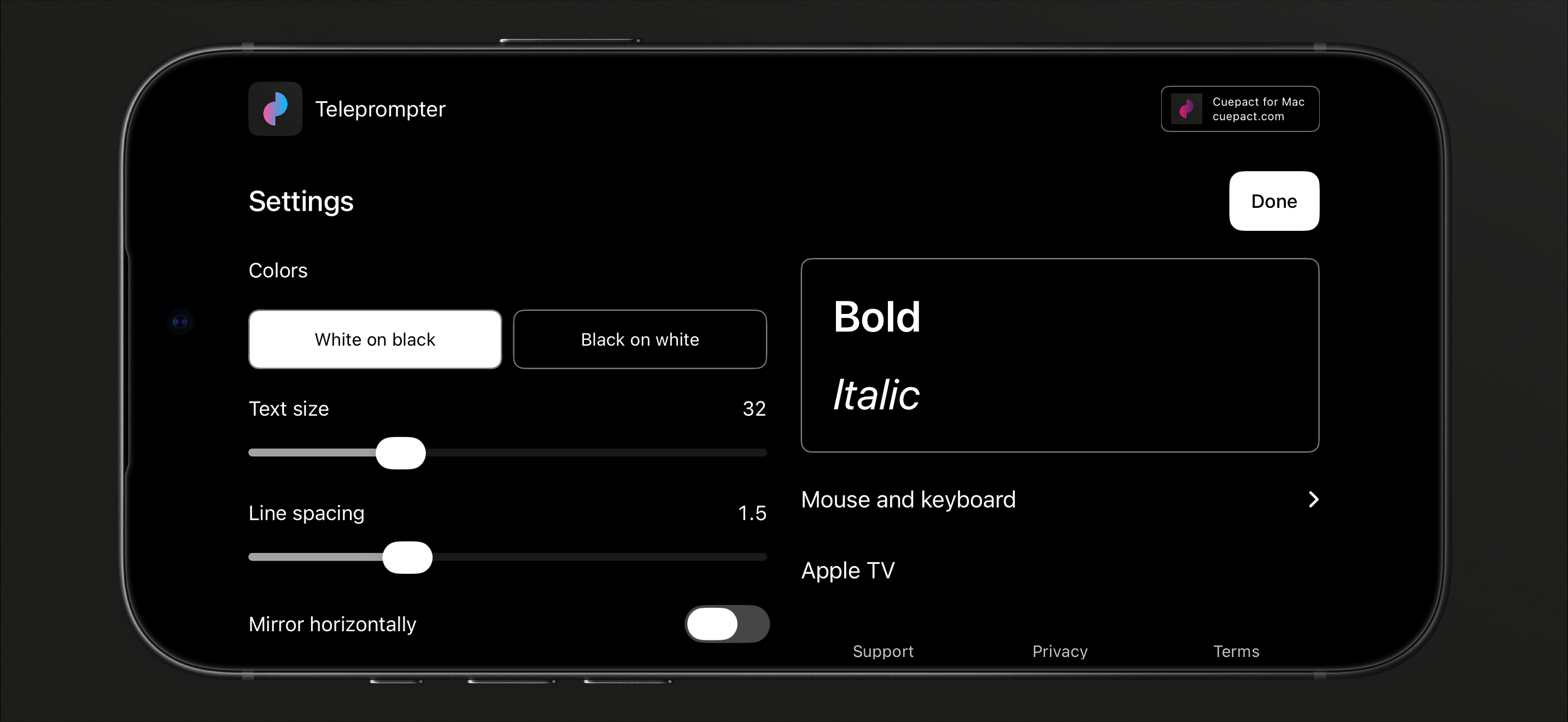
Choose Settings to adjust text size, line spacing and colors. Use Done to return to your text.
Open reading mode.
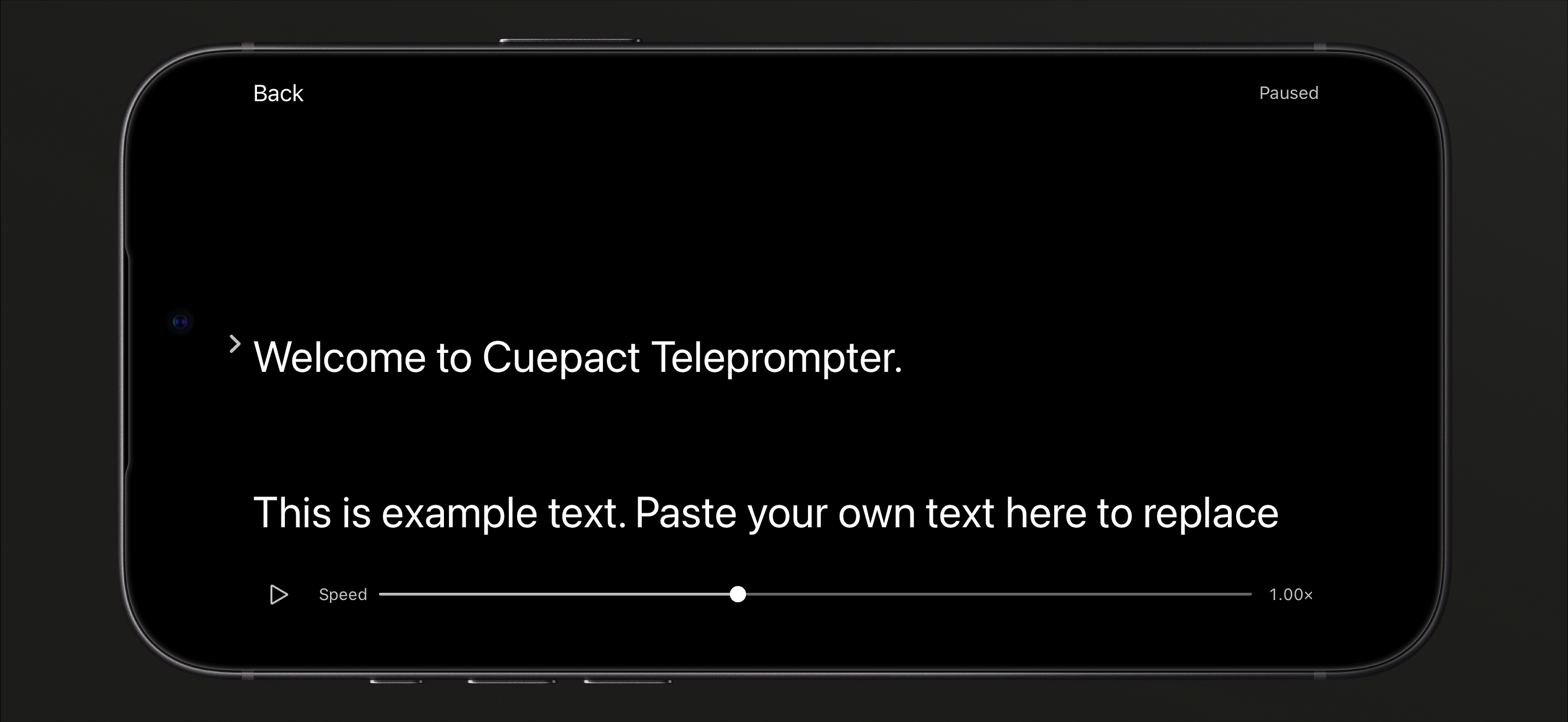
Choose Start. The text is still paused. Tap the play button to start scrolling and follow the arrow in the middle of the screen.
While reading
Read at
your own pace.
Adjust the speed.
Move the slider to make the text scroll more slowly or quickly. Read a short paragraph aloud first and find a pace that feels comfortable.
Pause when you need to.
Tap the text to pause. Tap again to continue. At the end, choose Restart to return to the beginning; the text will be paused again.
Readability
Set up the text
for your space.
Choose white text on black or black text on white. Make the text large enough for your reading distance and leave enough space between the lines.
Mirroring
Using
a mirror?
If you read through teleprompter glass, turn on horizontal or vertical mirroring under Settings as your setup requires. Check that the text is readable in the glass.
If you read directly from your iPhone or iPad screen, leave mirroring off.
Good to know.
Why doesn’t the text scroll after Start?
Start opens reading mode paused. Tap the play button to scroll the text. While reading, you can also tap the text to pause or continue.
Can I continue with the same text later?
Yes. The app saves your text, settings and reading position on your device. No account is needed.
Can I use a keyboard or mouse?
Yes. In reading mode, you can start, pause and move through your text, among other things. Pairing depends on your device. See the mouse and keyboard instructions.
Is the app available in English?
Yes. Cuepact Teleprompter is available in 44 languages, including English. The app follows your device’s language setting.